6 Sept 2025

s/4 Hana Public cloud Use full app names

APP NAME                         -         Description(USE)

Display Authorization Trace - like SU53 in onpremise.
Display Security Audit Log -  If we want check security audit log
IAM Information System - It works something like SUIM
Display Authorization Trace - To capture the authorization trace.
Monitor Email Transmission - Display all outgoing email requests & Send a test email to check
Monitor User Sessions - To monitor all active users session, you can delete if you want.
Monitor Email Transmissions - Like SOST in On-premise


3 Sept 2025

Embedded BW activation in S/4 hana

 To Activate Embedded BW in S/4 hana use belw notes:

Check notes:

2636754 - Configuration steps for embedded Analytics in ABAP based Applications

2289865 - Configuration steps for SAP S/4HANA Analytics

2303900 - Latest Information about BW Setup in S/4HANA Systems

Setup: 

Run se37 to setup BW client:

RS_MANDT_UNIQUE_SET – to set the client

RS_MANDT_UNIQUE_GET – to view existing client

Run the task in STC01: 


AFter setup we are facnig error:  Data source XXX was not found in system <SID> from  Analysis for office.

When we execute the same query from RSRT once, then it is working from Analysis for office.

We need to run the RSA1, first time it will ask to activate, so activate it. No wall queries are started working

also check the rfc in SBGRFCCONF. The client should be correct client.

2 Sept 2025

Application not configured. Use Extensibility Test tenant in s/4 hana public cloud

 When you try to open Manage Logos app, in Starter system and Development tenant, it will not allow to create.


solution:

There are some limitations, you can only open this app in Development-Customizing tenant.

Reference Note: 3342103 - Key User Extensibility apps are not available or read only - SAP S/4HANA Cloud Public Edition

26 Aug 2025

Fiori Troubleshooting

To trace with HTTP watch while checking fiori, please install HTTP watch from link:

http://www.httpwatch.com/download/

Reference note: 1558903 - How To Trace a Portal Scenario Using HttpWatch

==========================================================================


24 Aug 2025

SJOBREPO Activation

To Activate Job Repository in S/4 hana, we have to perform below steps:

In Section-1, i will provide direct steps, with out going to more deails, for more deails you can follow section-2:

Section-1: This steps should perform in all client in system like 000, 100 & 200.

1. check whether SAP_SYSTEM user exists or not, if not create user type system and with SAP_ALL profile. you can also user differnt user than SAP_SYSTEM, but recommed to use this user.

2. run /nSJOBREPO_STEPUSER tcode and assign user SAP_SYSTEM

3. Run report: R_JR_UTIL_1 and activate job repository, if already active also, just deactivate and activate once. So that job R_JR_BTCJOBS_GENERATOR will get scheduled.

after job R_JR_BTCJOBS_GENERATOR run only, the default jobs will get scheduled. But it will not show any where as scheduled or released. So check after 1 or 2 hours. the job will get trigger.

If it is urgent copy the job to the required client and run it once, all the jobs in SJOBREPO get scheduled.

===============

Section-2

Below is the detailed procudure to activate:

By default, the SAP S/4HANA technical job repository expects the user SAP_SYSTEM in the clients ADMIN (=000) and BUSINESS or, if this is not available, the user DDIC. If neither SAP_SYSTEM nor DDIC exists in a client (or if these users do not have the required authorizations), the technical job repository cannot schedule any jobs in this client.

In this case, enter a user that should be used to execute the technical jobs in the client for each individual client.

As of SAP S/4HANA 1610, transaction SJOBREPO_STEPUSER exists for this purpose. It is used to create a suitable user and assign this user to the job repository in the current client. As of SAP S/4HANA 1709, this transaction can be called using a button in the menu bar of transaction SJOBREPO.

Goto Transaction: /nSJOBREPO_STEPUSER

 
click on Create/Change user icon
in the pop-up browser button, it will display if any suitable user exist, if not you can enter a user name just press enter. in our case we have BATCH_USER exist.

So we will assign that user.


With releases lower than SAP_BASIS 7.51 SP03, there is only the option to create the stepuser manually in SU01 and assign it to the current client via report R_JR_UTIL_1. The relevant SAP Note is 2339022.

The parameter rdisp/job_repo_activate_time specifies the time cycle for the job repository activation. The job R_JR_BTCJOBS_GENERATOR runs based on the value specified in this parameter.
60M (60 minutes)
2H (2 hours)
0 (No activation)

 If the job  R_JR_BTCJOBS_GENERATOR not exist in any client, just run report R_JR_UTIL_1 deactivate and activate job repository, it will crate a new job in the logged in client.

Reference Notes:

3236399 - FAQ - Technical Job Repository (SJOBREPO)

2190119 - Background information about SAP S/4HANA technical job repository

22 Aug 2025

s/4 hana public cloud issues

 Values in My User Defaults is blank in My Purchase Requisitions New app

While creating a purchase requisition, the following needs to be done to have values in My User Defaults:

Default Settings is used to view and edit selected default settings of the purchase requisitions created by the user.

  • This can be done using the 'My User Defaults' section in the home page of the app.
  • Or by navigating to the 'Default Settings for Users' app (choose from the dropdown in the profile icon on the right corner) and edit the settings.

Reference note: 3497486 

========================================================================

User IDs not found in "Default Settings for Users" App


In Manage Workforce APP, No work agreements exist for the users that are facing the error. Thus, are not appearing in the user selection(F4 help). A valid workagreement should exist for that particular CB user

Reference note: 3320061 

=========================================================================


S/4 hana 2023 - Activities

  While accessing Migrate your Data Fiori app, you will not find the create Option:


This might be due to below reasons:

Your client global setting is notmofiable in SE06

Your client might be not modifiable state in scc4

Your client might set as test or production in SCC4.

=======================================================================

We may get Serach Error in Fiori apps:
We need to run the task SAP_ESH_INITIAL_SETUP_WRK_CLIENT in all clients

if we did sap_all client copy , we need to run the SAP_ESH_ADJUST_AFTER_CLIENT_COPY


=======================================================================

Error ESH_ADM_MSG312 "the execution of the URL according to the whitelist is not possible" occurs when run ESH-COCKPIT

For the root cause solution, please check the SAP Notes:

853878 - HTTP WhiteList Check (security)

2578665 - How to maintain the table HTTP_WHITELIST

As the workaround, the enterprise cockpit can be opened from t-cd=ESH_DASHBOARD -> Menu -> Administraton -> ES-Cockpit.

2626107 - How to execute task list SAP_ESH_INITIAL_SETUP_WRK_CLIENT

========================================================================


S/4 HANA cloud Public Edition My views

     In SAP S/4HANA Cloud, public edition, you need to deploy scope items in both the customizing and development tenants, but they are not deployed separately in the sense of independent activations. Instead, the customizing tenant acts as the initial system where you define the scope and make initial configurations. The development tenant is then activated to mirror the customizing tenant, allowing for development and testing of changes before they are transported to the customizing tenant or potentially to a test/production environment.  

  In SAP S/4HANA Cloud public, custom roles are primarily created and managed within the Customizing Tenant, which is the primary workspace for business process configuration and key user extensibility. While the Development Tenant is used for ABAP development, including developer extensibility, custom roles are generally not created there. 

    The customizing tenant uses customizing requests and software collections for moving configurations, while the development tenant uses workbench requests. This ensures a clear separation of concerns. 

some more glance on TR's created during deployment:

https://community.sap.com/t5/enterprise-resource-planning-q-a/deployment-of-organizational-structure-from-development-tenant/qaq-p/14015683#:~:text=Accepted%20Solutions%20(1)-,Accepted%20Solutions%20(1),learning%20page%20and%20the%20KBA:

On the other hand, when you deploy your CBC configurations to the Development Tenant, there is no transports created for you to release/export these configurations to the Test Tenant and Production Tenant. This is a kind of hard guardrail to prevent you from moving development org configurations to the T and P tenants. From Development Tenant, you can only create and export development transports (ABAP codes) to the downstream tenants.


4 Jan 2019

change log_mode to overwrite in HANADB from HANA STUDIO

Log in to HANA STUDIO with Administrator
Double click on the system
Then go to  --> Configuration --> global.ini --> Persistence --> 
double click on parameter log_mode and change the value from normal to overwrite


28 Dec 2018

How to restore SAP Sybase DB in to the same host.

If you wan to restore SAP sybase DB into the Same host using the backup dump, please follow below steps:

1. First make sure the dump is available to the file system level.
2. Stop SAP system
    stopsap
3. Then start only Sybase database
    startdb
4. Now Switch use to syb<sid> then connect tot he DB
    su - syb<sid>
    isql64 -Usapsa -P<password> -S<SID> -X
5. Now trigger restore command:
    use master
    go
    load database <SDI> from '<path of the file/<filename>'
    go

6. After processing the load, it will ask run bring online command.
    online database <SID>
    go

7. Exit from sybase level and stop and start the SAP.

How to backup SAP Sybase Database

If you want to do a backup of Sybase Database for SAP, we can do in different ways.
1. From DBACOCKPIT you can schedule in the database calendar.
2. Run the backup command from OS Level.
3. Using the third party tools.


To take the backups in sybase we need to create dump configuration. this is required to perform the backup options 1 & 2.
Below are the steps to perform using Commands at OS Level (linux).
1. Login to OS level and switch to database user.
    su - syb<sid>
2. Connect to Sybase DB level
    isql64 -Usapsa -P<password> -S<SID> -X
3. connect to master database
    use master
    go
4. Now configure dump
    sp_config_dump @config_name='<sidDB>',
    @stripe_dir = '<backup path>' ,
    @compression = '101' ,
    @verify = 'header'
    go
5. Now trigger the backup providing the file name
    dump database <SID> using config = 'dump config file name(which      we created in the above step)'


27 Dec 2018

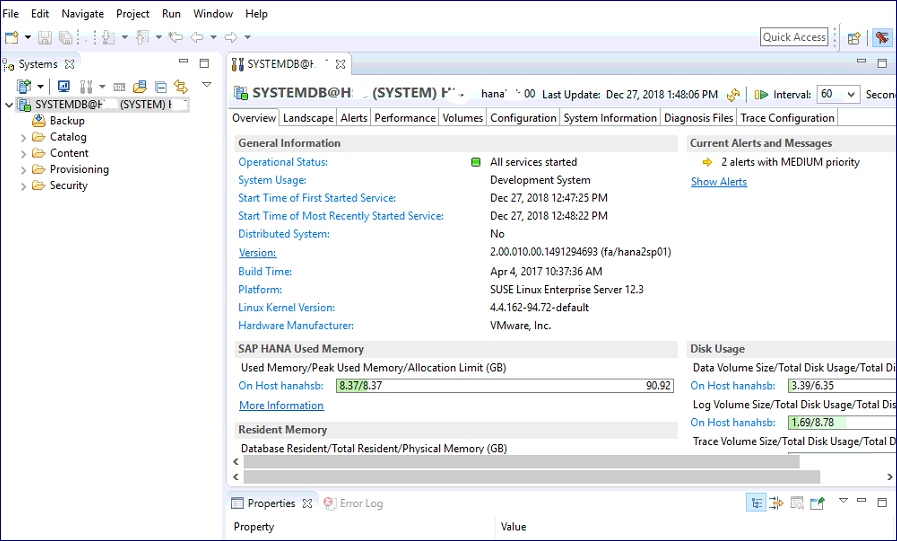
How to donwload, Install and add HANA DB to Studio

Download HANA Studio software:
2.       If you open first link, Select Download Software


3.  It will open a new window and you need SAP S user to login, select SUPPORT PACKAGES & PATCHES, then extract By Alphabetical Index (A-Z)


4. Choose letter H


5. Select HANA PLATFORM EDITION
6. Choose SAP HANA PLATFORM EDITION 2.0.
7. Select HANA Studio 2


8. Under downloads Select which operating system you want, here we are selected Windows, and download latest file.

 9.  Download SAPCAR file for Windows version from above place, search with name SAPCAR and download related to windows.

Installation of HANA Studio:
1. Then extract the HANA Studio.SAR using SAPCAR file.
 It will extract all files to install and creates a folder.
 2.       Double Click on hdbsetup


 Click on Finish.

 Adding HANA system in Studio:
Open HANA Studio by click below icon
 For the first time it will ask to select the workspace, if you want you can change it later.
 Click on launch
Below are the available consoles:

Click on Administration Console
And click Add system icon to add HANA system

 Enter details of HANA DB
 Click on Finish
It will add system like below:
 Click on the First line “ SYSTEMDB@XXXXXX”
You can get complete details at right side.


12 Aug 2018

Business Functions in SAP

Important Tcodes for Business Functions:
SFW5 - activate/deactivate Business Functions 
SFW BROWSER - investigate, which enhancements are related to the Business Function in question 
SFW1 - create switches (only customer enhancements) 
SFW2 - create Business Functions (only customer enhancements) 
SFW3 - create Business Function Sets for industry solutions (only customer enhancements) 

We need to activate Business Functions in Development system and then need to transport over the Landscape:
Activating Business functions:
1. Start Tcode: SFW5
2. Select Business Functions which needs to activate
3. Chose Activate Changes. One batch job will trigger for the actiation. Job name is: SFW_ACTIVATION_SF0X
4. Then Capture in a Transport through out the landscape.
5. for logs, Goto -> Switch Framework Logs in SFW5.
For any reason the activation has cancelled, you can restart the activation selecting: System Settings --> Activate Restart. Business Functions can activate in any client, it will be activated Globally. Please make sure if any prerequisites needs to perform for any Business Function before activation.
Important SAP Notes:
SAP Note 1324838 Mapping of Business Functions to Technical Usages 
SAP Note 1524246 Relationship of licenses and business functions 
SAP Note 337623  Customizing after installation or upgrade 
SAP Note 868771  Copy Special Customizing 

SAP Note 908007  Special functions in Switch Framework / SFW5